![startupscom-logo-420-1.png]](https://help.startups.com/hs-fs/hubfs/startupscom-logo-420-1.png?height=40&name=startupscom-logo-420-1.png)
The Message Activity dashboard — located inside the Activity & Tracking section of the Investor Matching provides a clear snapshot of your outreach communication progress. It helps you monitor the status of outreach messages sent to potential investors and track engagement levels.
Key Metrics
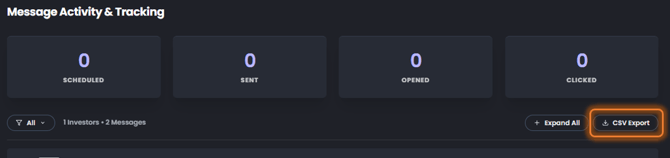
At the top of the dashboard, you’ll see four core performance indicators:
-
Scheduled – Number of messages queued to be sent at a future date/time.
-
Sent – Total number of messages successfully delivered to recipients.
-
Opened – Count of messages that recipients have opened.
-
Clicked – Number of messages where recipients have clicked on included links.
- Bounced - Number of messages that could not be delivered because the recipient’s email address was invalid, inactive, or the recipient’s server rejected the message.
- Error - Number of messages that failed to send due to system or technical issues during the delivery process.
These metrics give you an at-a-glance view of your campaign’s momentum and engagement.
Recipient Activity Table
Below the metrics, the dashboard lists all targeted investors along with their message activity details:
-
Recipient – Name, profile photo (if available), and email address of the investor.
-
Status – Indicates whether the message is Scheduled or Sent.
-
Opened – Shows if the recipient has opened the message (✓ for opened, ✗ for not opened).
-
Clicked – Shows if the recipient clicked on any links (✓ for clicked, ✗ for not clicked).
-
Manage – Options to:
-
View the message content
-
Edit the message
-
Delete the message
Note: For scheduled emails, you can still edit or delete them before they are sent.
-
Filters & Export
In addition to the above, the Message Activity dashboard now includes a filter option, allowing you to narrow down the list of investors/messages by status and engagement type. Specifically, you can filter by:
-
Draft messages (not yet scheduled)
-
Scheduled messages
-
Sent messages
-
Opened messages
-
Clicked messages
-
Bounced messages
-
Messages with replies
-
Messages with errors
Once you have applied your filter(s), you can export the filtered list (e.g., to CSV) by clicking the CSV Export button so you can share or archive your outreach data based on the specific subset you selected.
Logs & Activity
The Logs & Activity tab provides a detailed timeline of what has happened with a specific message. This view helps you understand the delivery status and key actions taken on your outreach.
Within Logs & Activity, you may see events such as:
-
Scheduled – The date and time the message was scheduled to be sent.
-
Send Attempt – When the system attempted to send the message.
-
Send – Confirmation that the message was successfully sent.
Each event includes a timestamp, allowing you to track exactly when actions occurred. In some cases, IP address and user agent information may not be available and will appear as dashes.
Why is this useful?
-
Helps you quickly focus on specific segments of your outreach (e.g., those who have opened but not clicked, or messages that bounced).
-
Enables exporting custom subsets of your outreach, making it easier to track performance, share with colleagues/investors, or integrate with your spreadsheets/CRM.
-
Improves your ability to follow up strategically, by targeting the right group (e.g., send a new message to those who opened but didn’t click).
The Message Activity & Tracking view in Activity & Replies is ideal for monitoring outreach effectiveness, identifying engaged investors, and prioritizing follow-ups. For example, recipients who have opened but not clicked might need a more compelling call-to-action in your next message.