![startupscom-logo-420-1.png]](https://help.startups.com/hs-fs/hubfs/startupscom-logo-420-1.png?height=40&name=startupscom-logo-420-1.png)
App Passwords allow you to grant access to your Gmail account for apps or devices that don’t support two-step verification. Follow these steps to generate one safely.
2-Step Verification (2FA) must be enabled on your Google account first. Without this, the option to create an App Password will not be available.
Step 1: Log in to Your Gmail Account
-
Open your preferred web browser and navigate to Gmail.
-
Enter your email address and password, ensuring you’re signed in to the account where you want to generate the app password.
Step 2: Access the App Passwords Page
-
Go directly to the Google App Passwords page here: https://myaccount.google.com/apppasswords
Step 3: Create an App Password
-
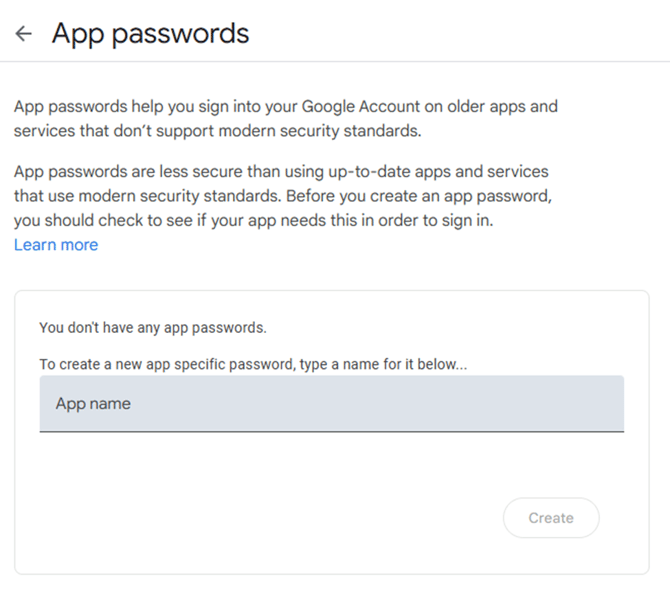
Under the App name field, type the name of the app or device you’re generating the password for.
-
Click Create.
-
A window will display a 16-character password (separated by spaces for readability).
Important:
-
This password is only displayed once. Copy it immediately and save it in a secure location (such as a password manager or a temporary text document).
-
Make sure to copy the password exactly as shown, including all spaces, because some apps may not accept the password without the spaces.
Step 4: Enter the App Password in Startups.com Investor Matching Email Setup
-
Go back to your Investor Matching Email account setup page: https://www.startups.com/investors/matching
-
Paste the generated password in both the SMTP Password and IMAP Password fields.

-
Click Test Account to verify that the connection is working successfully.
-
Once it shows Connected, your email account will be connected and ready to use.
Tip: If you ever need to revoke access, you can return to the same App Passwords page and delete the generated password.
Troubleshooting: “The setting you are looking for is not available for your account.”
This usually means one of the following:
- 2-Step Verification (2FA) is not enabled on the Google account.
- Your Google Workspace administrator has disabled App Passwords for your organization.
To resolve this:
- Make sure 2-Step Verification is turned on for the account.
- If 2FA is already enabled and the option still does not appear, contact your Google Workspace admin to verify that App Passwords are allowed.
Important Note
If you change or reset your main Google Account password, any App Passwords you previously generated will be revoked and will no longer work.
You’ll need to generate a new App Password and update the SMTP Password and IMAP Password fields in your Investor Matching email settings with the new password. Once updated, click Test Account to reconnect your email.