![startupscom-logo-420-1.png]](https://help.startups.com/hs-fs/hubfs/startupscom-logo-420-1.png?height=40&name=startupscom-logo-420-1.png)
This guide will help you set up your Hostway email account within the Investor Matching platform using IMAP settings.
Important: Before proceeding with setup, you must contact Hostway support to:
Enable Two-Factor Authentication (2FA)
Generate an App Password
Your regular email password will not work for setup.
Required Settings
Incoming Mail (IMAP)
-
Host Name: imap.siteprotect.com
-
Port: 993
-
Encryption: SSL/TLS
Outgoing Mail (SMTP)
-
Host Name: smtp.siteprotect.com
-
Port: 587
-
Encryption: STARTTLS
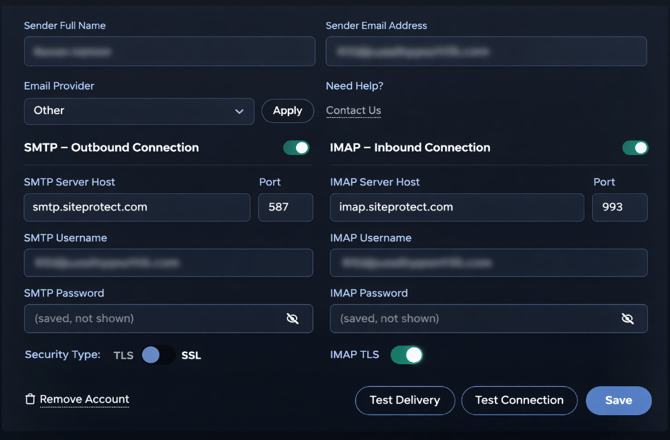
Setup Steps![]()
-
Open your email settings in the Investor Matching platform.
- Enter your Full Name and Hostway email address.
-
Use the App Password generated by Hostway (not your regular password).
-
Input the following server details:
-
IMAP Host: imap.siteprotect.com
-
IMAP Port: 993
-
SMTP Host: smtp.siteprotect.com
-
SMTP Port: 587
-
-
Ensure encryption is enabled (SSL/TLS for IMAP, STARTTLS for SMTP).
-
Save your settings and test the connection.
Troubleshooting
If your email fails to connect:
-
Confirm that 2FA is enabled on your Hostway account.
-
Verify you are using the correct App Password.
-
Double-check server names and ports for typos.
-
Ensure your network or firewall is not blocking ports 993 or 587.