![startupscom-logo-420-1.png]](https://help.startups.com/hs-fs/hubfs/startupscom-logo-420-1.png?height=40&name=startupscom-logo-420-1.png)
Before connecting your Gmail account, please make sure that 2-Step Verification (2FA) is enabled on your Google account. If it isn't already enabled, please follow the instructions provided here to set it up before proceeding with the Gmail connection: https://help.startups.com/knowledge/how-to-set-up-two-factor-authentication-2fa-in-gmail
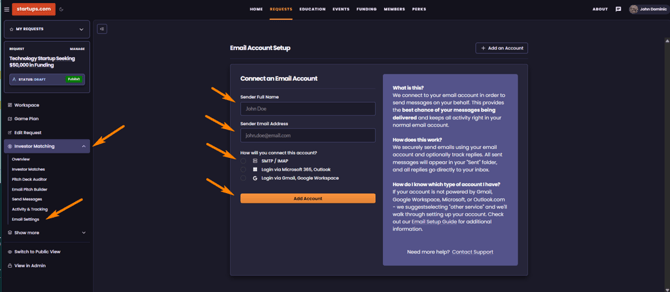
To connect your Gmail account, make sure you're on this page and fill in the required details. Before clicking Add Account, be sure to select the SMTP/IMAP option. Once you've entered all the necessary information, click Add Account to complete the setup.
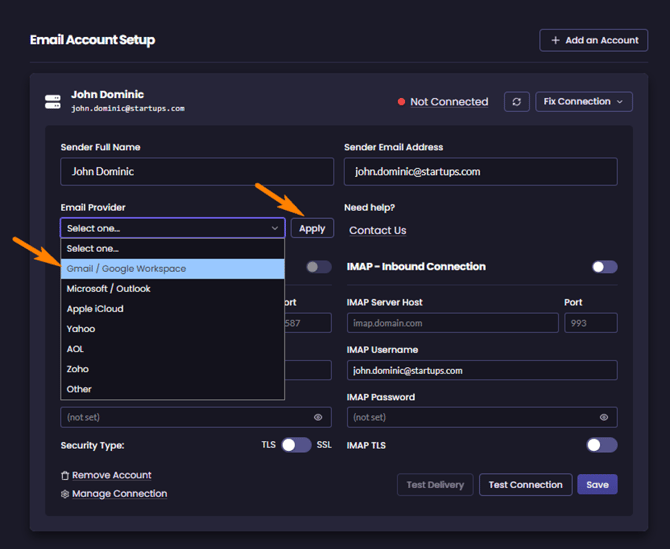
On this page, select Gmail from the available options, then click Apply. The system will automatically populate the SMTP and IMAP server host fields with the correct settings, so you won't need to enter them manually.
For the SMTP and IMAP password, you will need to generate an App password within your Google account, given that your 2-Step Verification (2FA) is already enabled on your Google account as previously mentioned.
Go directly to the Google App Passwords page here: https://myaccount.google.com/apppasswords
Create an App Password. Under the App name field, type the name of the app or device you’re generating the password for and click the Create button.
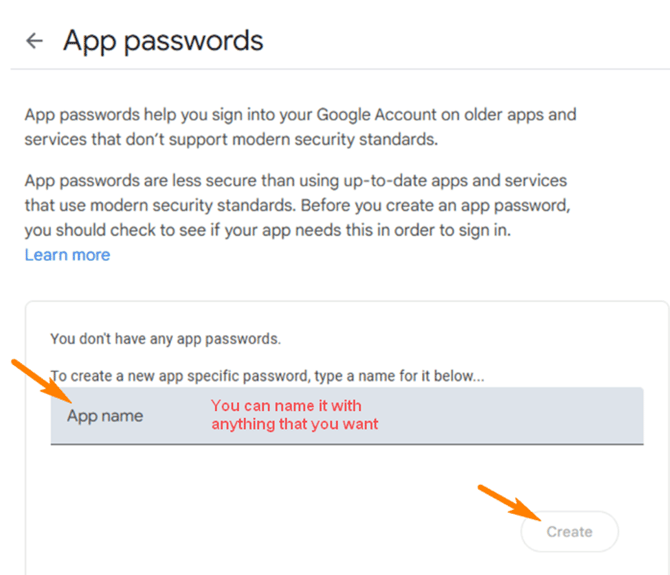
A window will display a 16-character password (separated by spaces for readability).
This password is only displayed once. Copy it immediately and save it in a secure location. Make sure to copy the password exactly as shown, including all spaces, because some apps may not accept the password without the spaces.
Once done, go back to your Investor Matching Email account setup page and paste the generated password in both the SMTP Password and IMAP Password fields, and hit Save
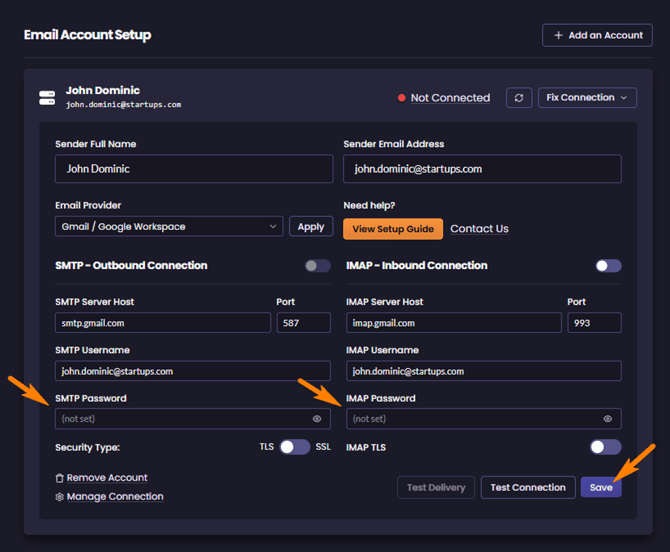
Once you've saved the settings, click Test Connection to verify that the integration is connected successfully. After that, click Test Delivery to ensure everything is working correctly. Both tests should confirm that the setup has been completed successfully.
IMPORTANT REMINDER:
Please keep in mind that whenever you change your Google password, the existing App Password will automatically be disabled. As a result, your Google account will be disconnected from your Startups.com account.
To reconnect, you’ll need to generate a new App Password through Google and replace the previous one in your Startups.com account. Once the new App Password is added, your Google account should be connected again.