![startupscom-logo-420-1.png]](https://help.startups.com/hs-fs/hubfs/startupscom-logo-420-1.png?height=40&name=startupscom-logo-420-1.png)
Now that you’ve successfully set up your email account, you’re ready to start sending emails or scheduling them in advance. The emailing feature allows you to send messages manually, one at a time, while also giving you the flexibility to schedule them for future delivery.
This ensures controlled sending and helps you plan your outreach effectively without needing to be online at the exact time your emails go out.
Default Sending Schedule
-
By default, emails are scheduled at 15-minute intervals.
-
This schedule applies automatically unless manually changed before sending.
Example
-
If you schedule it to send at 9:00 AM, the next email will be sent at the next scheduled interval — in this case, 9:15 AM — unless you change the schedule before sending.
How to Schedule an Email
-
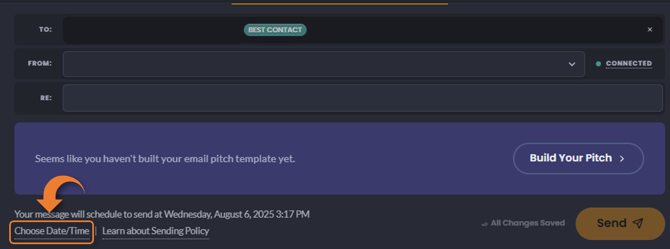
While on the Compose Email screen, scroll to the bottom.
-
Click Choose Date/Time.
-
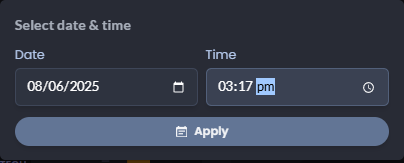
A new screen will appear where you can select your preferred date and time for the email to be sent.
-
Once selected, click Apply to confirm your schedule.
-
The system will automatically queue your email for delivery at the chosen time.
Daily Email Sending Limits
To ensure quality engagement and system performance, email sending limits vary depending on your membership level:
- Advisor Membership: You can send up to 15 emails per day.
- Pro Membership: You can send up to 3 emails per day.
These limits apply to both manually sent and scheduled emails combined. Be sure to plan your outreach accordingly to make the most of your daily allocation.
Important Note: Finalizing Before Scheduling
Once an email is scheduled for sending, it can no longer be edited. Therefore, it's crucial to finalize and thoroughly review your email before you schedule it. If changes are needed after scheduling, you'll need to delete the scheduled email and draft a new one, then schedule it again.